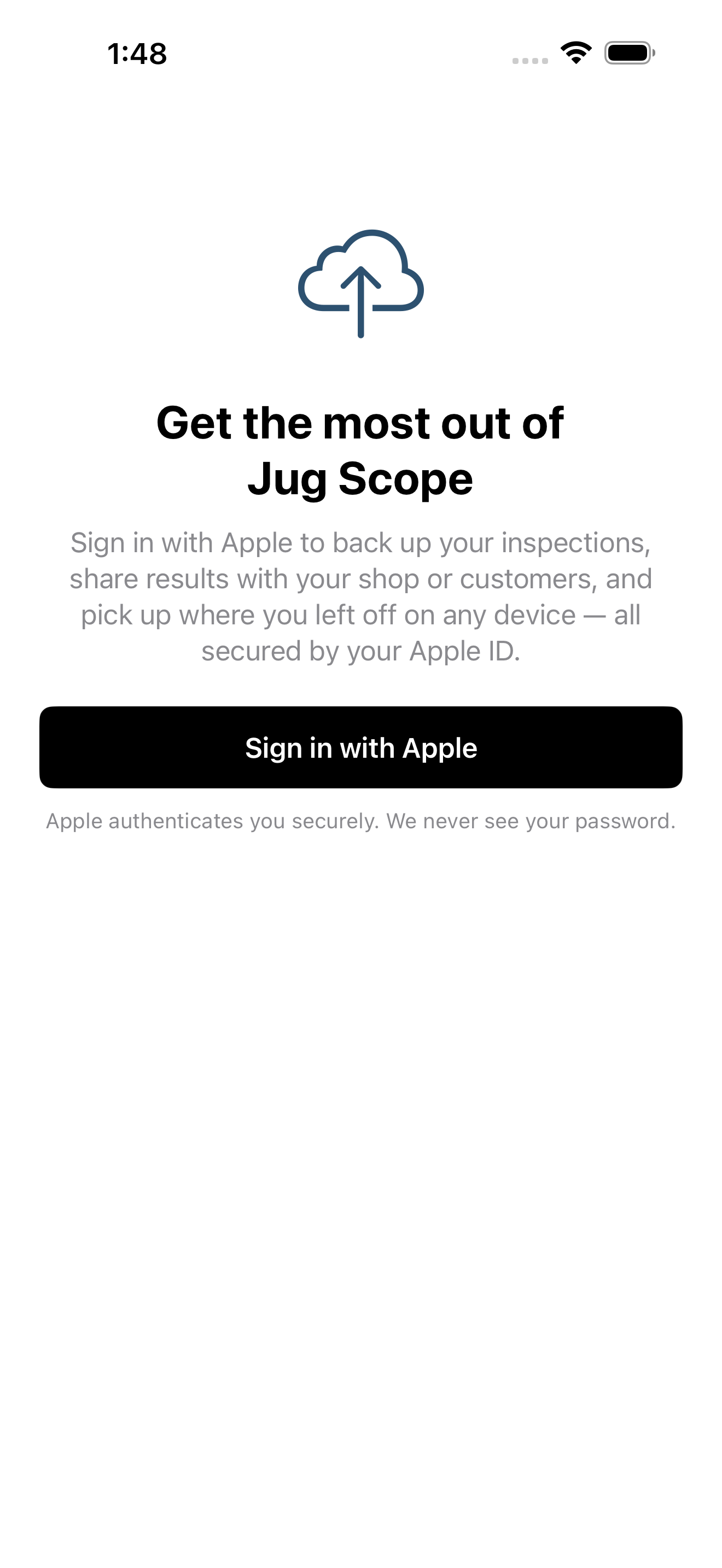
Signing in is what makes your inspections more than files on one device. With a single tap — Sign in with Apple — every inspection you capture is backed up, available on your other devices, and ready to share with a shop, a customer, or an analyst. There is no new password to create or remember, and no separate account to set up: your Apple ID is your account.
This section covers why you sign in, exactly what Apple does and does not share, how the first run differs for owners and shops, the one-time beta steps you will see today, and where to find your account details later in Settings.
For owners — Signing in is your safety net. Your inspection history is backed up and follows you to a new iPad or iPhone, so the record you built up over years is never trapped on a single device.
For shops — Signing in establishes your shop's identity in Jug Scope — the foundation for sending finished inspections to customers and exchanging them with other shops (see §6, Sharing & Analysis).
2.1 Why sign in
Three things depend on being signed in, and you get all of them from one tap:
- Backup. Your inspections are saved to your account, not just this device — so a lost or replaced phone never means lost work.
- Multiple devices. Start on the iPad at the hangar, pick it up on your iPhone later; your inspections are there on both, secured by your Apple ID.
- Sharing. Sending an inspection to your shop or a customer, or receiving one shared with you, runs through your account (see §6, Sharing & Analysis).
You sign in once. From then on Jug Scope recognizes you automatically each time you open the app.
2.2 What Apple shares — and what it doesn't
Sign in with Apple is built around your privacy, and Jug Scope is built to respect it. Apple handles the authentication entirely: it confirms who you are without ever handing your password to the app.
- We never see your password. Apple authenticates you; the app only receives confirmation that the sign-in succeeded.
- Your name and email stay private. You control what, if anything, Apple shares, and you can use Apple's private email-relay feature if you prefer not to share your real address.
- Your Apple ID is the only identifier we use. It is how Jug Scope ties your inspections to you and how it finds your existing account if you reinstall the app.
That last point matters: because your Apple ID is the key, you can delete and reinstall Jug Scope, or move to a new device, sign in again, and find your account waiting.
2.3 First run for owners
For an individual owner, getting started is the simplest possible path: open the app, tap Sign in with Apple, and you are in. There is no code to enter and nothing to look up. From there you add your aircraft and start inspecting (see §7, Guide for Individual Owners).
During beta: Before the app opens, you will complete a short, one-time registration and, if you received one, enter an invitation code. Both are described in §2.5 and are removed at launch.
2.4 First run for shops
A shop signs in exactly the same way — Sign in with Apple — and that sign-in establishes your shop's identity. From there you can set up the cross-shop network that lets you receive and send inspections across shops and manage the many tails you work on. The full walkthrough is in §6.2 and §8, Guide for Shops.
For shops — Use the same Apple ID consistently for your shop so all of your inspections, customers, and shared work stay under one identity.
2.5 Beta registration
During beta: This entire subsection describes beta-only behavior. The registration form and invitation-code steps below exist only during the beta program and are removed when Jug Scope launches publicly. At launch, getting started is just Sign in with Apple (see §2.3 and §2.4).
While Jug Scope is in beta, the first launch includes a brief registration so we know who is testing and can tailor the program. It is quick, and your information stays private.
Joining the beta.
- Sign in with Apple. This creates your account, the same as it will at launch.
- Tell us a little about you. A short form asks your role, how many aircraft you work with, the borescope hardware you use, and — optionally — how you capture images today. These answers help us shape the beta; none of them are shared.
- Tap Join the Beta. That completes registration and opens the app.
Entering an invitation code. If you received an invitation email with a beta code, you will be prompted to enter it after signing in. Codes look like JUG-XXXX. Type it in and tap Submit Code to link your account; if you do not have one, you can skip this step and still use the app.
Coming back on a new device. If you reinstall the app or set up a new device during the beta, Jug Scope offers a Welcome back screen. Sign in with the same Apple ID and your registration is restored automatically — no need to fill the form out again. If you are genuinely new, an I'm new here link takes you to the registration form instead.
Tip — Always use the same Apple ID you registered with. It is the only identifier Jug Scope uses to find your existing registration, so the same Apple ID brings your account back every time.
If the beta ends. When a beta period concludes, Jug Scope shows a screen explaining that the beta has ended. Your inspection data stays safe on your device, and you can export all your inspections from that screen so you can carry them into the full version. From there you can also subscribe, redeem a beta-tester reward if you have one, or contact support.
2.6 Your account in Settings
You can see and manage your account any time from Settings (open it from the Home screen toolbar). The Account section shows who you are signed in as, along with the role and fleet details from your registration.
To reach the cloud features and sign out, open Jug Scope Cloud from Settings. There you will see your signed-in status and a Sign Out option, alongside the tools for claiming and managing tails across shops (covered in §6.2).
Caution — Signing out disconnects this device from your account and its cloud features until you sign back in. Your inspections that are backed up remain safe in your account; sign in again with the same Apple ID to restore access.