Here is where the work you did up the ladder turns into an answer. Capturing the images was the effort; reviewing and comparing them is the payoff. In one place you can look over everything you shot, clean up the set so only your best images remain, open any shot full-screen to study it, and — the part that matters most over the life of an engine — lay this inspection's images next to a past inspection's and actually see what is changing inside the cylinders.
That last point is the whole reason to keep doing this twice a year. A single inspection tells you what an engine looks like today. Two or three inspections lined up over time tell you where it is heading — and catching a valve or a barrel wall trending the wrong way, while it is still cheap to deal with, is worth far more than any single set of pictures.
For owners — This is early warning you can see with your own eyes. Lining up the same valve across two inspections turns "I think it looks worse" into a side-by-side you can point at — and a problem you catch on a slow slide is a problem you fix on your schedule and your budget, not on the side of a runway.
For shops — This is a deliverable that sells the next inspection. Show a customer their own cylinder a year apart and the value of regular borescope work makes itself; you are not selling a service, you are showing them their engine.
During beta: Reviewing and comparing are completely open. At launch, capturing images stays free while reviewing requires a subscription; see §9, Billing & Plans.
5.1 Reviewing a finished inspection
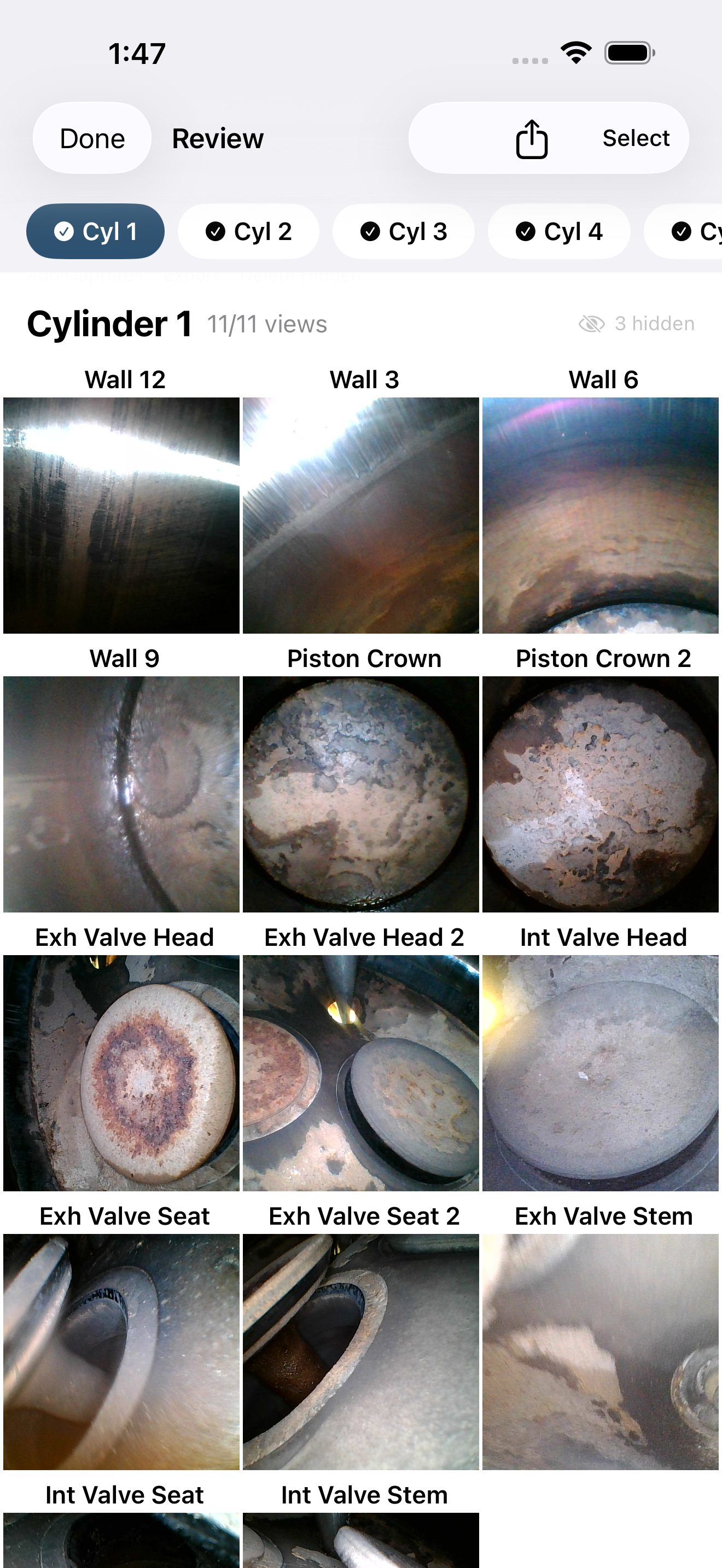
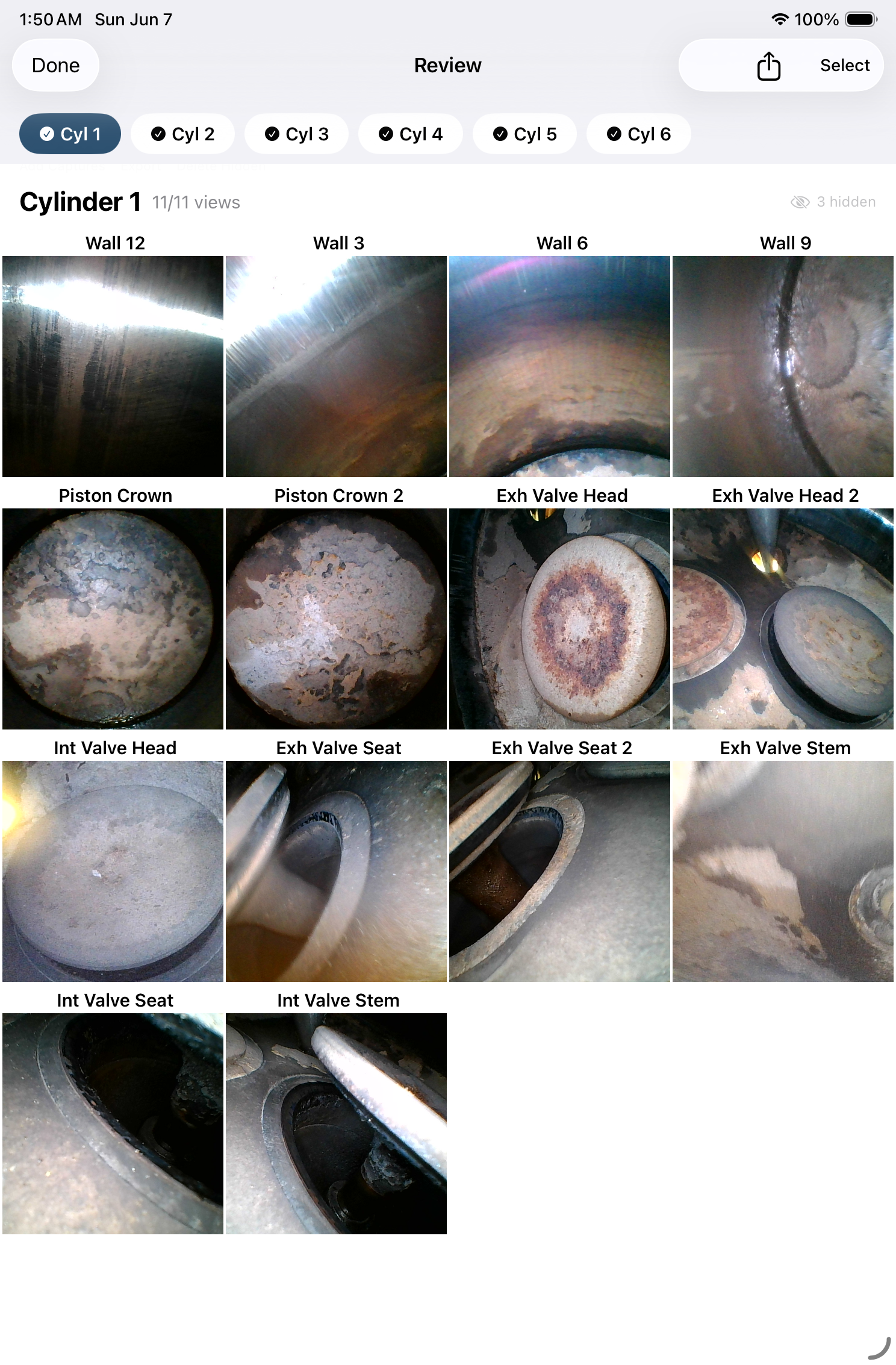
The Review screen is your contact sheet for the whole inspection: every image you captured, organized by cylinder, so you can confirm the set is complete and pick out the best shot for each view. This is the last look before you compare, export, or send.
Open Review from the cylinder overview's toolbar (see §4.2) or from a finished inspection's detail screen. You will see:
- A cylinder selector — a list down the side on a wide screen, or a row of tappable chips across the top on a narrow one — each showing the cylinder number, how many of the eleven views are captured, and a status icon.
- An image grid for the selected cylinder, each thumbnail labeled with its view, laid out edge to edge like the Photos app. Views you have not captured yet show as empty placeholders, so a gap is impossible to miss.
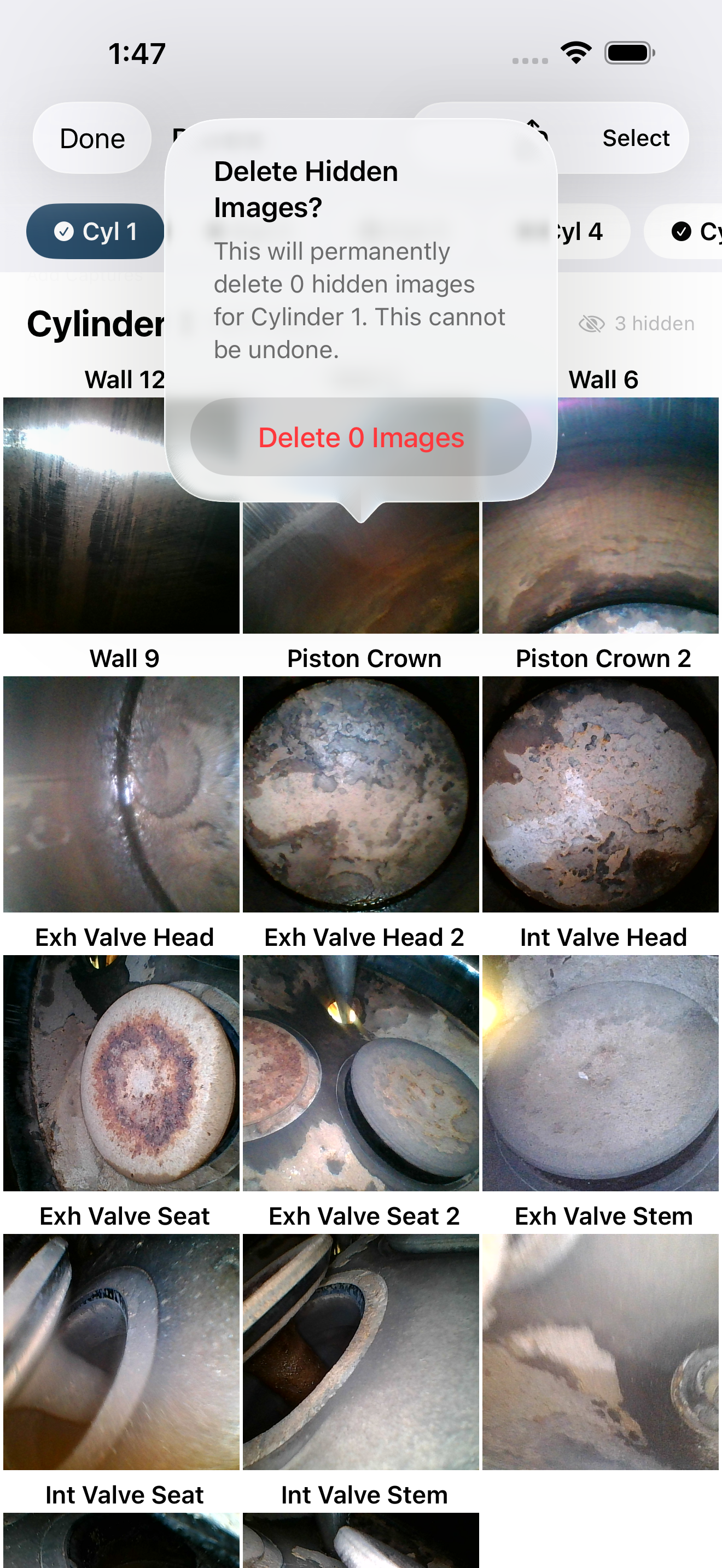
From here you can tidy the set without ever leaving the screen. Touch and hold any image (or tap Select) to enter selection mode, then Hide the shots you do not want in the final set or Move images that landed under the wrong view. Hiding is reversible — hidden images go to a Hidden bucket you can show again or, once you are sure, permanently delete. You can also add notes per cylinder right here.
Tip — Touch and hold a single image for quick actions on just that shot: Set as Primary (choose which capture represents a view when you took several), Reassign to View (fix a mislabeled shot), and Compare Across Inspections (jump straight to this view's history — see §5.4).
Tip — Realized mid-review you missed a view? The Add Captures button reopens the capture screen for the selected cylinder, dropping you at the first view that still needs an image — so filling a gap never means starting the cylinder over.
5.2 Studying a single image
Some findings only reveal themselves when you can get close. Tapping any image opens it full-screen, where you can pinch to zoom in on a valve seat or a patch of barrel wall and study the detail that a thumbnail hides. This is where you confirm with your own eyes whether something is a shadow or a crack.
Tap a thumbnail in Review to open the image full-screen. Pinch to zoom in and out, drag to move around a zoomed image, and double-tap to reset. Swipe to move between images without backing out to the grid.
5.3 Finding a past inspection
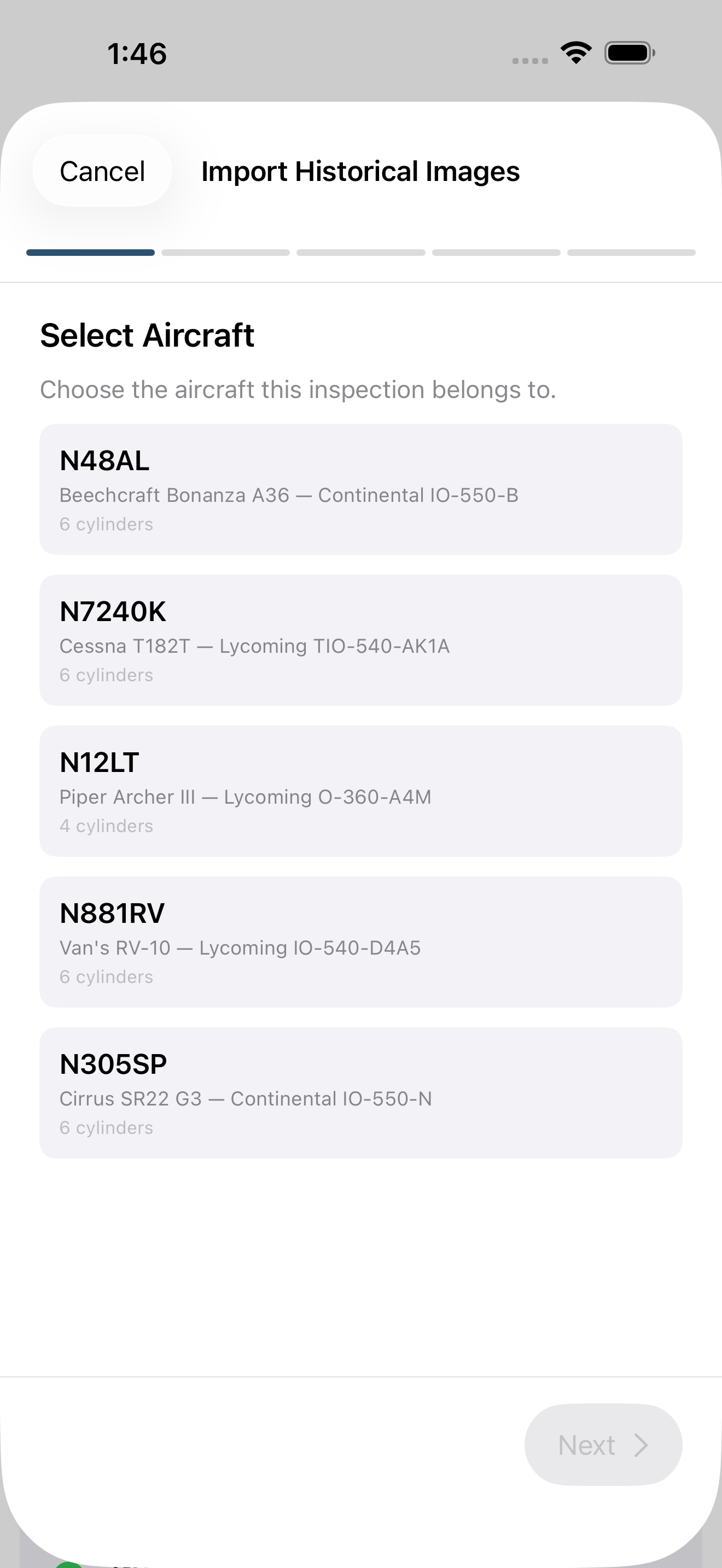
To compare an engine over time, you first need to find where it has been — and Jug Scope keeps every inspection you have done on a given aircraft in one tidy timeline. No hunting through a camera roll, no folders named "borescope_final_v2." Just open the aircraft's history and there it all is, newest first.
Open an inspection's detail screen and tap History to see every past inspection for that aircraft, sorted newest to oldest and grouped by year. Each row shows the date, the number of cylinders and images, the inspection's status, and the engine hours you logged. Tap any row to open that inspection's full detail.
For owners — This is why logging Hobbs and Tach hours on every inspection (see §4.1) pays off here: the history is not just a list of dates, it is a record of how many hours were on the engine each time — which is exactly what makes a comparison meaningful.
5.4 Comparing images over time
This is the feature that rewards every inspection you have ever done. Jug Scope lets you put the same view of the same cylinder side by side across inspections — this year's exhaust valve next to last year's — so a slow change that no single picture would reveal becomes obvious the moment the two sit together.
There are two ways in, and they flow into each other.
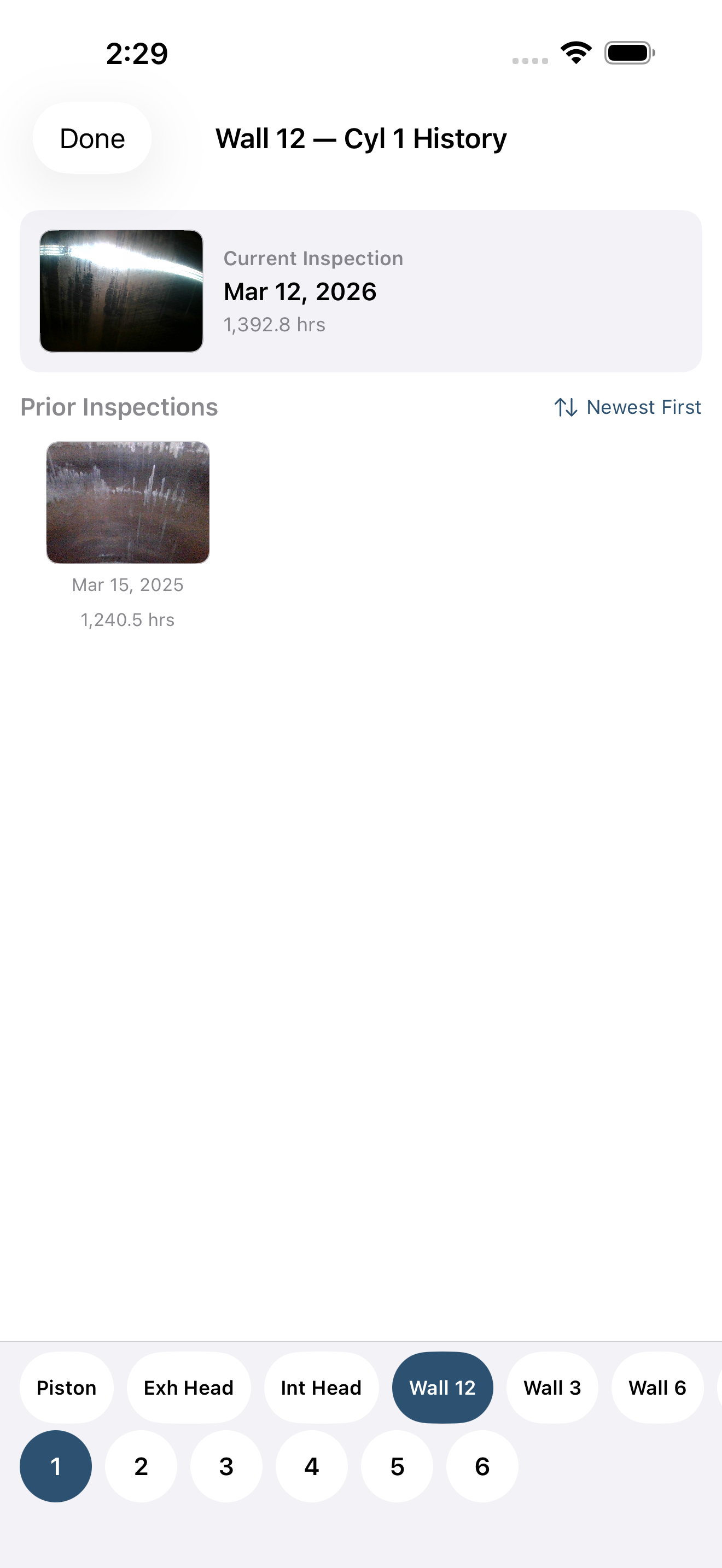
Start with the gallery view (Grid comparison). From an image in Review, touch and hold and choose Compare Across Inspections. Jug Scope pins your current image on one side and fills the rest of the screen with every prior capture of that same view and cylinder, drawn from your inspection history. Selectors along the bottom let you switch which view and which cylinder you are looking at, and a sort control orders the history however you like.
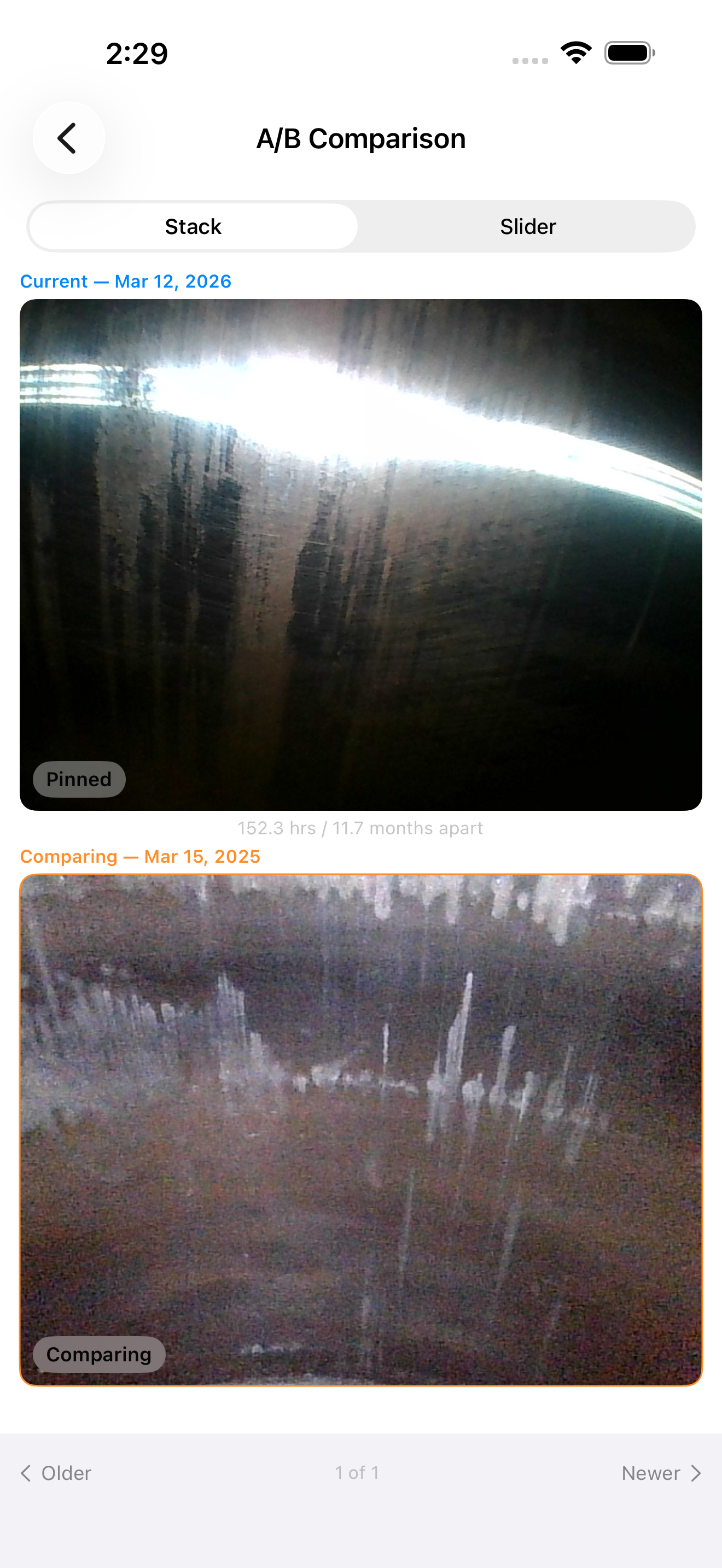
Then drill into a direct A/B. Tap any historical thumbnail in that grid and the app opens a focused, side-by-side comparison: your Current image on one side, the Comparing (historical) image on the other, each labeled with its date and engine hours. Pinch to zoom into either one to examine the same spot on both. Swipe left or right to step through the rest of the history without leaving the comparison.
The iPhone and iPad handle this differently, and it is worth knowing which you are using:
- On an iPad (and on an iPhone held sideways), the two images sit side by side, each zoomable on its own — the most natural way to study two pictures at once.
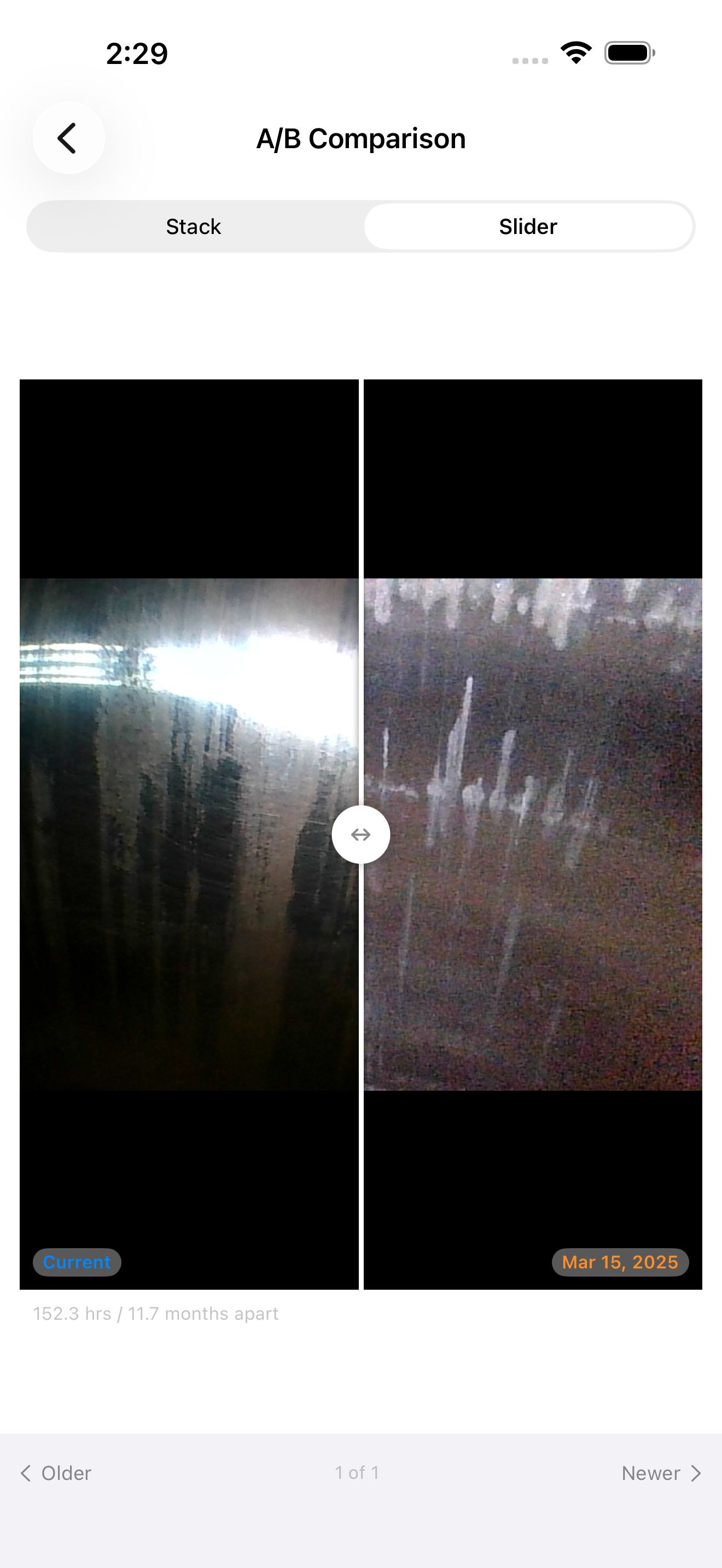
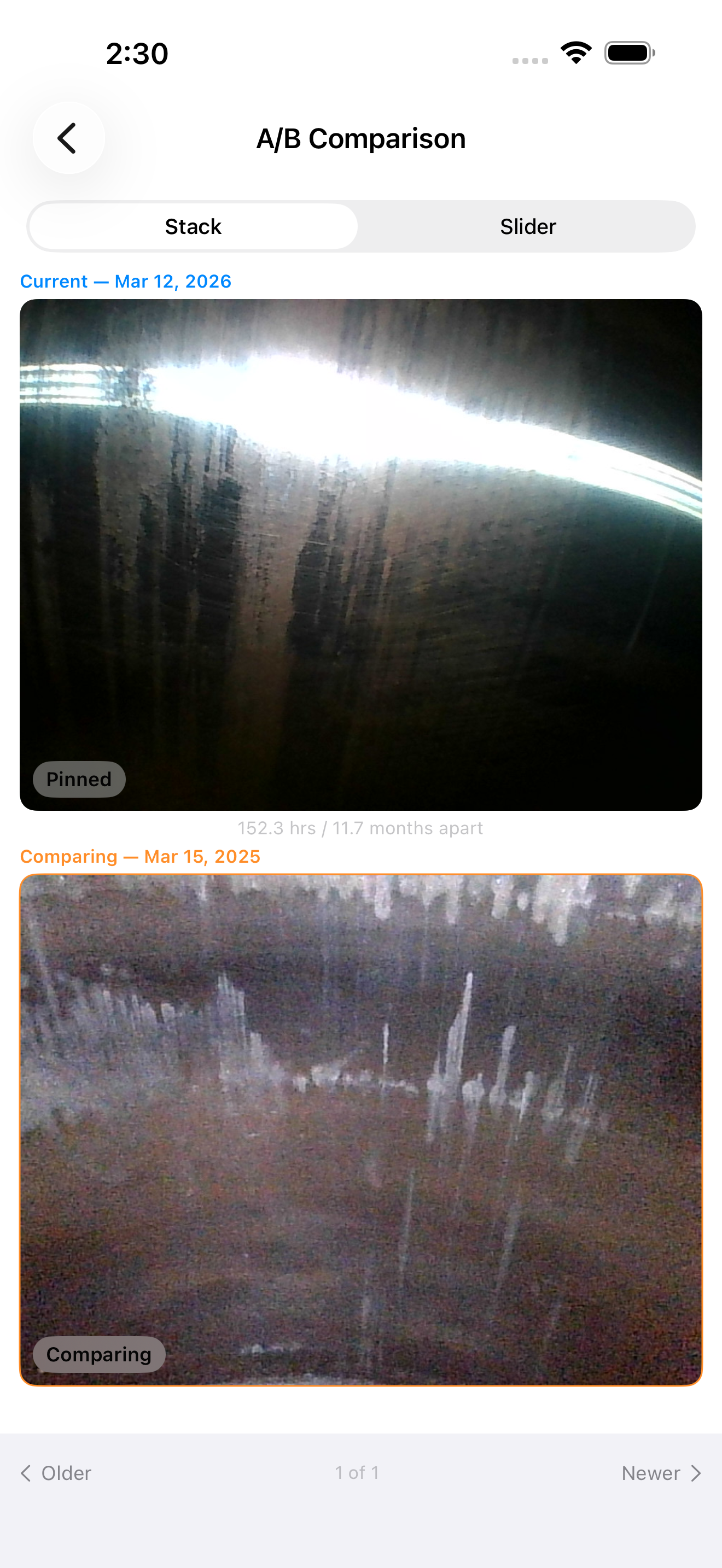
- On an iPhone held upright, where side by side would make each image too small to read, you choose between two modes with a toggle at the top: Stack lays the two images one above the other, and Slider overlays them with a divider you drag left and right to wipe between the current and historical image in the same frame.
Tip — The slider keeps both images locked together as you zoom, so when you pinch in to inspect a detail, both sides stay aligned on the same spot. Drag the divider across that detail and any change between the two inspections is hard to miss.
For shops — The A/B view is the single most persuasive thing you can put in front of a customer. Pull up their cylinder from a year ago next to today's, drag the slider across the wear, and the conversation about whether regular inspections are worth it answers itself.
If there is nothing to compare against yet — a first inspection, or a view that was not captured last time — the screen says so plainly and points you toward completing another inspection of that aircraft to build the history.
When you are ready to put the finished set in front of your mechanic, a customer, or an analyst, the next step is sharing — see §6, Sharing & Analysis.