A finished inspection is only as valuable as what you can do with it next. This is where the record you just built leaves your hands and goes to work — to the mechanic who will sign off the engine, to the customer who paid for the look, to another shop in your network, or out for an expert read. Jug Scope sends the whole set as one organized package, already labeled by cylinder and view, so whoever opens it sees exactly what you saw, in the same order.
That is the payoff of capturing to a standard: the sharing step is effortless precisely because the record explains itself.
For owners — Sharing turns your inspection into a second opinion. Send the complete set to your A&P or out for expert analysis and you are handing over a credible, organized record — not a phone full of loose photos a busy shop has to sort through before they can even start.
For shops — Sharing is your deliverable. Hand a customer a clean, labeled record of exactly what you found, pass an inspection to another shop in your network, or send it out for an analyst's read — all from the finished inspection, with the access level you choose.
During beta: Sharing and sending are completely open. At launch, sharing requires a subscription; capturing the images is always free. See §9, Billing & Plans.
6.1 Three ways to share an inspection
When you share an inspection, Jug Scope uploads the complete image set to the cloud and grants your chosen recipient access to it — they do not need a copy of your files, and you do not need theirs. There are three destinations, depending on who you are sending to and why.
To a shop. Send the inspection to a maintenance shop you work with — your own A&P, or another shop in your network. This is the most common path for an owner getting a second set of eyes, and for a shop passing work along.
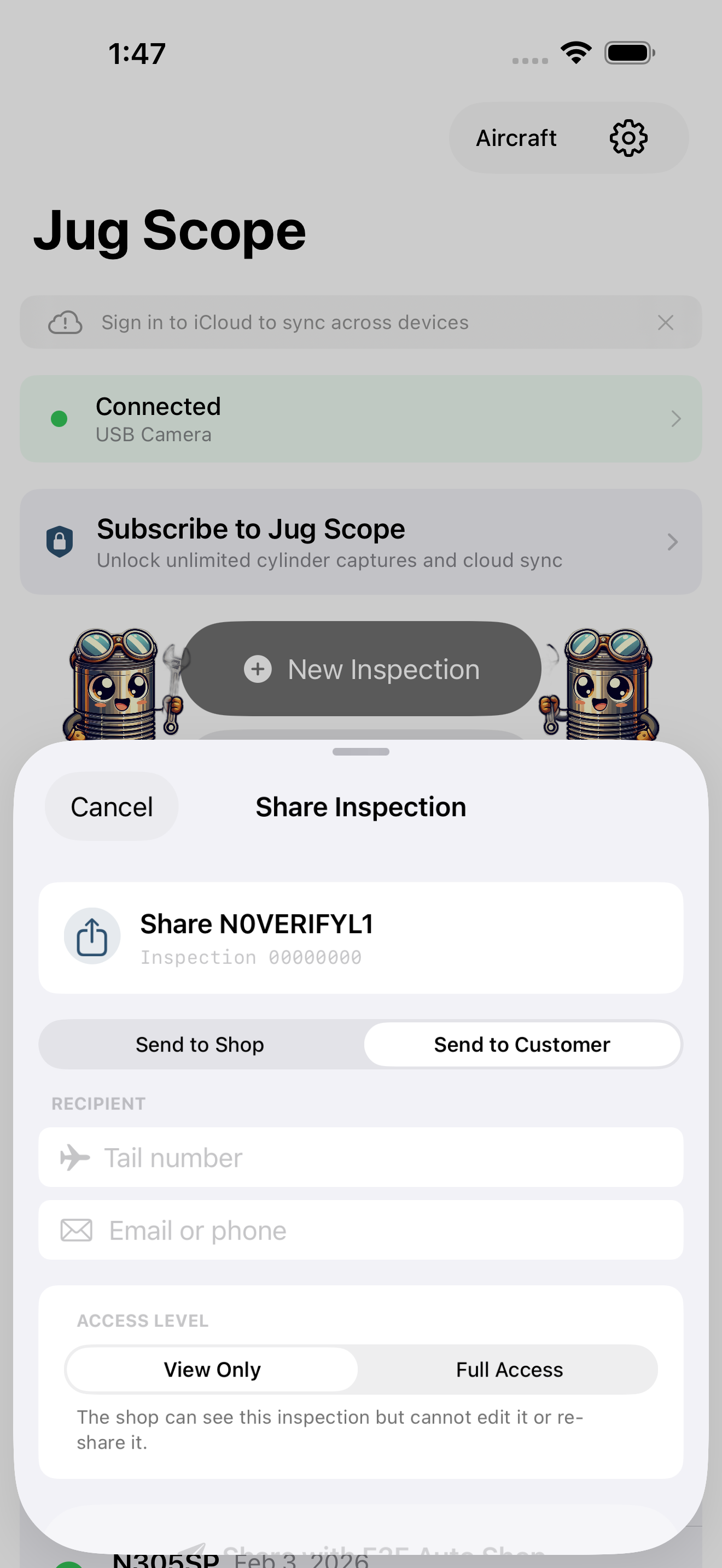
To a customer. A shop can deliver a finished inspection straight to the aircraft's owner, addressed by tail number and the customer's email or phone.
During beta: Sending directly to a customer may not be available in your build yet. If you do not see a Send to Customer option, share to the customer's shop account or send them an exported archive instead — see §10, Importing & Sample Data.
Out for expert analysis. Send the complete set for review by an engine analyst, who reads the images and tells you how the engine is actually doing inside. This is the path that turns a good record into an answer — covered in §6.5 below.
To share an inspection to a shop:
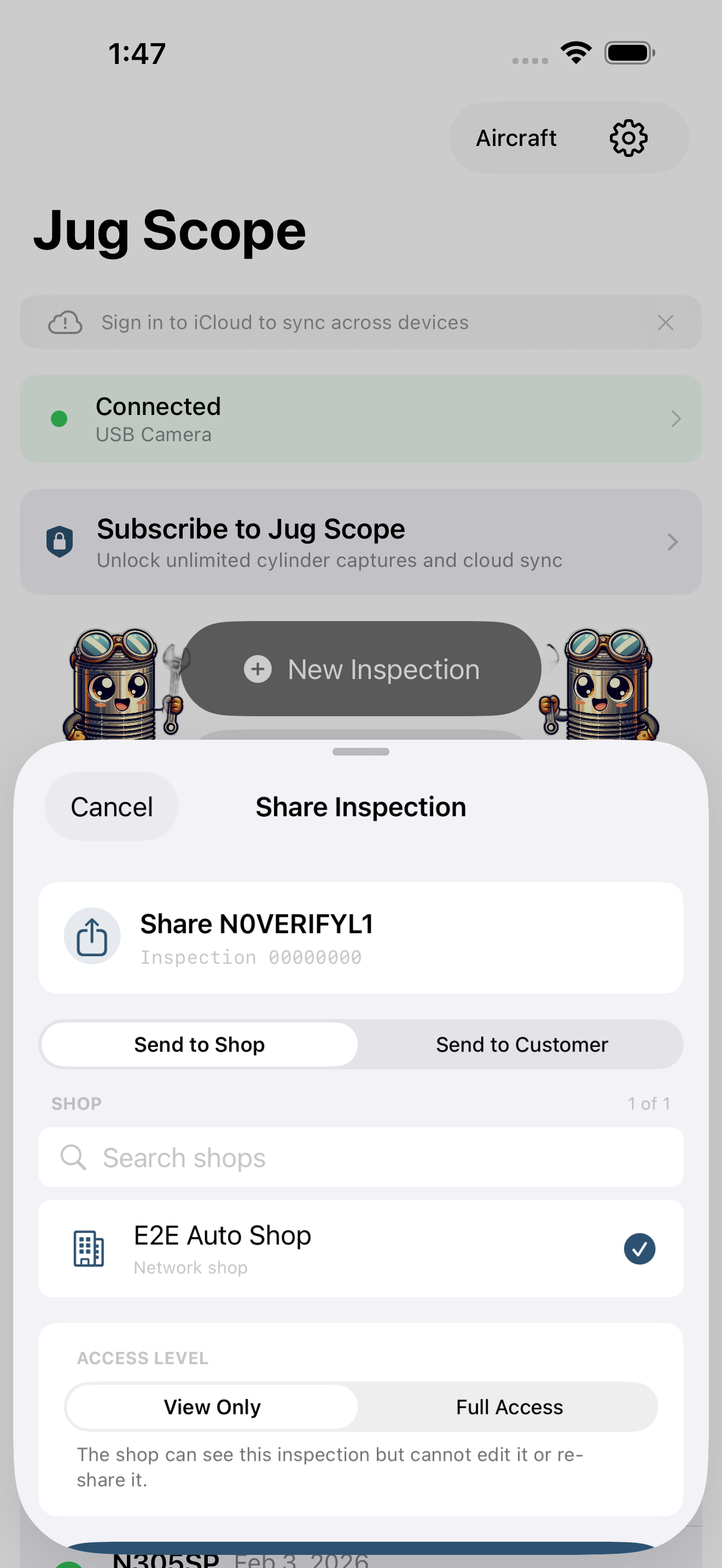
- Open the finished inspection and tap Share. The Share Inspection sheet appears, headed with the tail number and a short inspection ID.
- Pick the shop. Choose from your list of shops. If the list is long, use the search field to filter by name. Each shop shows whether it is one of your own (a DIY shop) or a Network shop you are connected to.
- Choose an access level (see §6.3).
- Tap Share with [shop]. A confirmation appears when the inspection has been sent.
Tip — If you have not set up any shops yet, the sheet tells you so and points you to Settings → Jug Scope Cloud, where you create or connect to a shop. Cross-shop setup is covered in §6.2.
6.2 The cross-shop network
Cross-shop sharing is how shops send and receive inspections without trading files. You connect to your shop account once, claim the aircraft tails you work on, and from then on you can grant other shops access to any inspection you have captured — and receive the ones they send you.
For shops — This is the backbone of multi-shop work. Claim the tails you service, browse them in one gallery, grant and revoke access as jobs move, and receive inspections from other shops without ever managing a download. Setup is covered start to finish in §8, Guide for Shops.
For owners — Most owners never need the full network. You connect once so you can send your own inspections to your shop; claiming tails and granting shop access are tools built for the shops you work with.
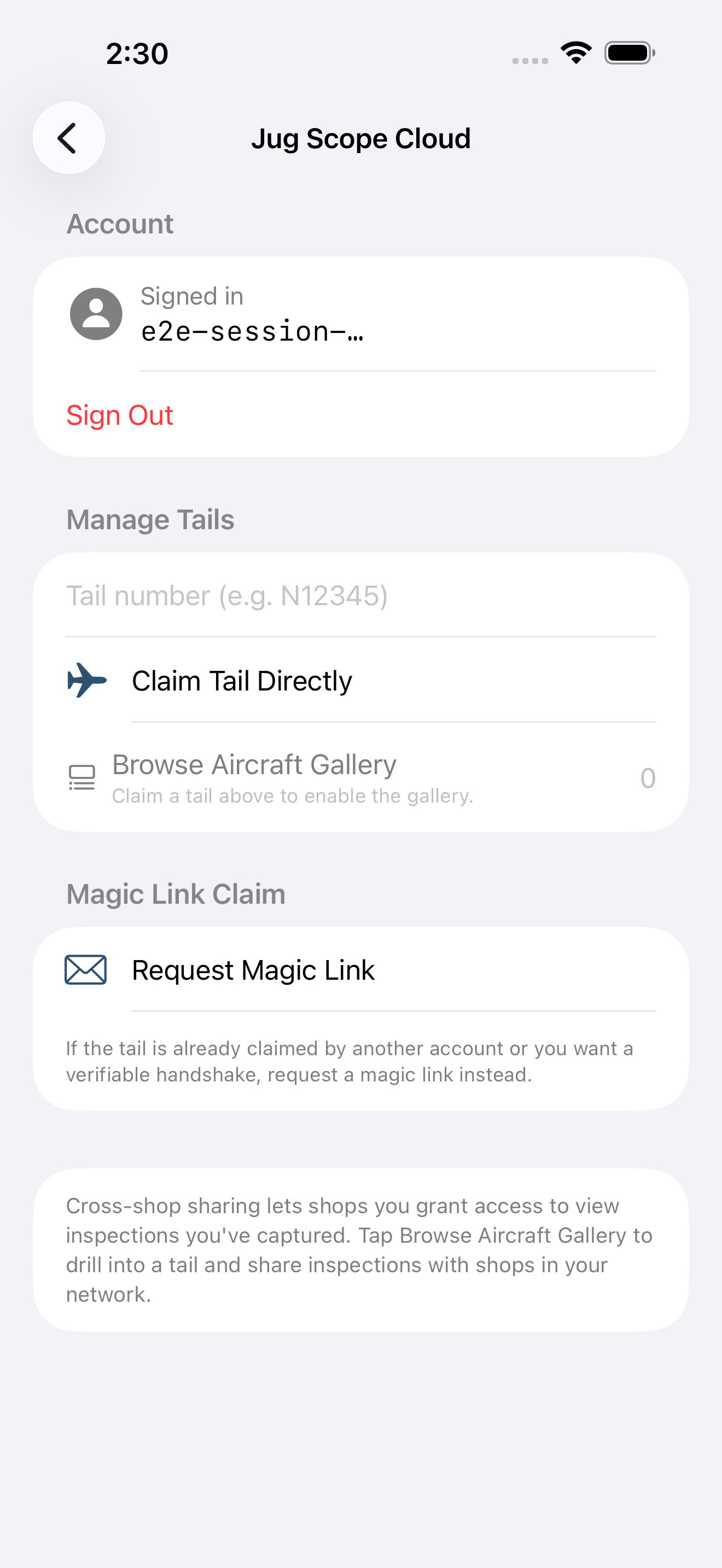
To set up cross-shop, open Settings → Jug Scope Cloud:
- Sign in with Apple. This connects your shop account. (Why Sign in with Apple, and what Apple does and does not share, is covered in §2, Account & Sign-In.)
- Claim a tail. Under Manage Tails, enter a tail number and tap Claim Tail Directly. Once you have claimed at least one tail, Browse Aircraft Gallery opens the gallery of aircraft you work on.
- Use a magic-link claim when you need a verified handshake. If a tail is already claimed by another account — or you simply want a verifiable claim — tap Request Magic Link instead. Jug Scope generates a claim code, the owner confirms it, and the tail is bound to your account.
During beta: The magic-link claim code is shown on screen for you to copy and enter. Emailing the code directly to the aircraft's registered owner is coming in a later release; for now, share the code yourself.
6.3 Access levels — what you are handing over
Every share carries an access level, so you decide exactly how much the recipient can do — see-only, or full hands-on. Choosing deliberately here is what keeps a delivered record from being changed out from under you, while still letting a trusted partner work the set when they need to.
- View Only — the recipient can see this inspection but cannot edit it or re-share it. Use this for a delivered record or a second opinion you want to stay exactly as sent.
- Full Access — the recipient can see, edit, and re-share this inspection. Use this when another shop is genuinely taking the work forward.
During beta: Full Access is offered as a choice, but server-side enforcement of the difference between the two levels is still being finalized. Treat View Only as your default for anything you want to remain unchanged.
For shops — Default to View Only for customer deliverables — the customer gets a faithful record they cannot accidentally alter. Reserve Full Access for another shop you are genuinely handing the job to.
6.4 Managing and revoking shares
Sharing is not permanent unless you want it to be. Every inspection keeps a list of who you have shared it with, and you can pull a share back at any time — so a record you sent for one job does not stay open forever.
At the bottom of the Share Inspection sheet, the Recent list shows the shops you have shared this inspection with, each with its access level and when it was sent. To pull one back, tap Revoke on that row; the share is marked revoked and the recipient loses access.
Tip — If you share to a shop while offline, Jug Scope queues the share and tells you it will deliver when you are back online. You do not have to wait for a signal in the hangar — finish the job and the share goes out on its own.
6.5 Send for expert analysis
This is the path that turns your record into an answer. Send the complete set out for review by an engine analyst, and the same automated screening they rely on goes to work first — which is exactly why capturing all eleven views to the standard matters. A complete, correctly shot set lets an analyst get straight to the question that counts: how is this engine actually doing inside?
For owners — This is the second opinion without the second trip. Instead of pulling the cowling again for a mechanic to look, you send the set you already captured and get a professional read of every cylinder.
For shops — Add an expert read to your deliverable when a finding warrants it — without sending the customer's airplane anywhere.
From the inspection, find the Send for analysis section and:
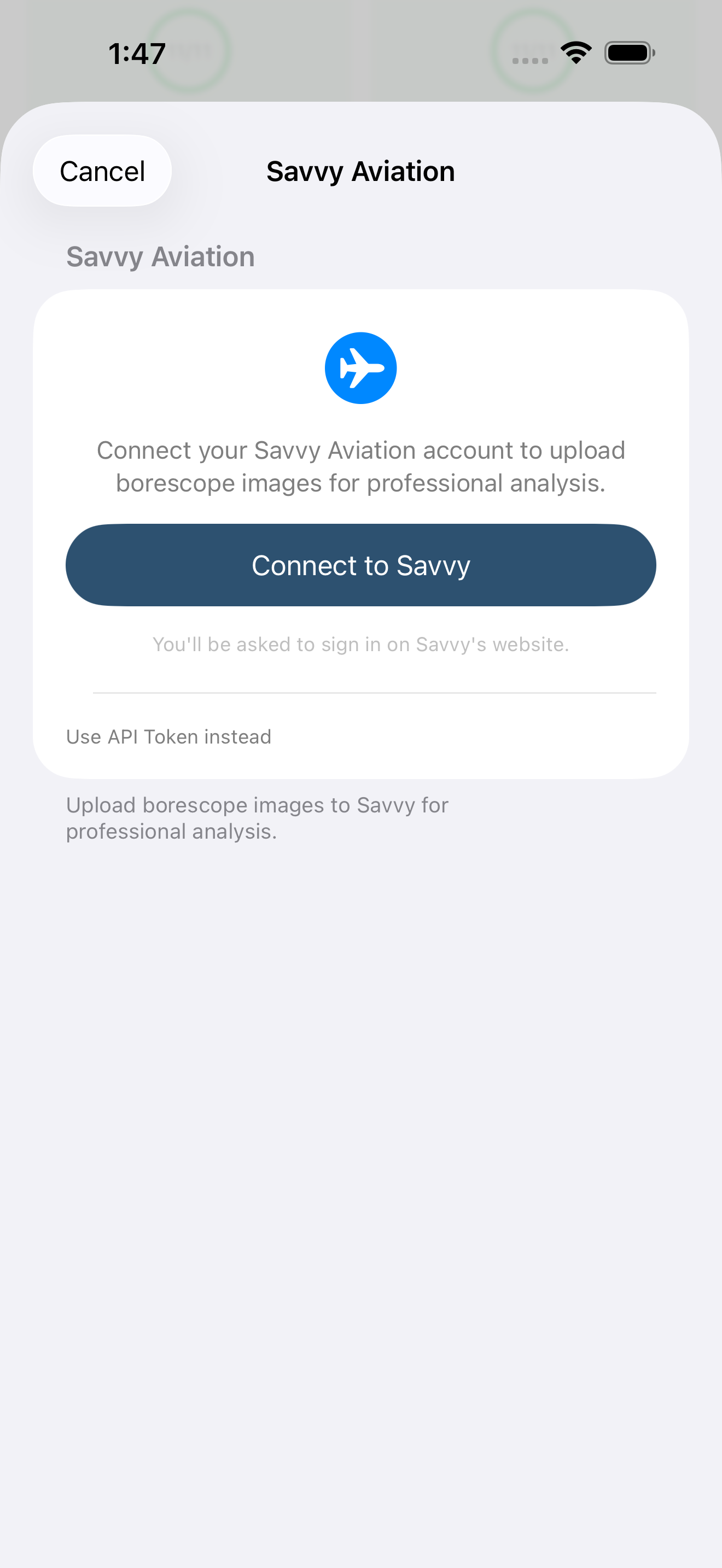
- Sign in to the analysis service. The first time, tap to sign in and connect your account. (Your sign-in is remembered for next time.)
- Choose the aircraft. Make sure the right aircraft is selected for this account before you upload — if it is not set, the app will prompt you.
- Upload the images. Tap Send, and the set uploads. When it finishes, you will see how many images were uploaded and an image set number confirming they arrived.
- Submit for analysis. Tap Submit for Analysis to request a review. The app confirms with a ticket number — your reference for the request, which an analyst will work from.
The section remembers where you are for each inspection, so you can leave and come back and still see whether a set is uploaded, submitted, or complete.
Tip — If a set ever shows that the images were removed on the service's side, use Upload Again to re-send them. Nothing in your own inspection is lost — the originals always stay on your device.
6.6 Receiving a shared inspection
Receiving is just as effortless as sending. When a shop or owner shares an inspection with you, it shows up in the app on its own — no download to manage, no file to import. You open it and you are looking at the same complete, labeled set the sender captured.
When an inspection is on its way to you, Jug Scope shows a transfer indicator while it arrives, and a cloud badge marks records that live in the cloud rather than only on your device. Once the transfer finishes, the inspection is yours to review and compare like any other — see §5, Reviewing & Comparing.
6.7 A paid inspection stays unlocked for whoever receives it
When an inspection has been paid to unlock, that unlock travels with it. If a shop unlocks an inspection and then sends it on, the person who receives it sees it fully unlocked — they do not have to pay again, and they do not need a subscription of their own to open what was already paid for.
During beta: Per-inspection unlock is not enforced — every inspection is freely accessible. The behavior described here applies at launch. See §9, Billing & Plans.
For shops — This is what makes a delivered inspection genuinely yours to hand over. Unlock it once and the customer can open it for good, regardless of whether they ever subscribe.
The per-inspection unlock, and how it relates to subscriptions, is explained in full in §9.4.