If you run a maintenance shop, you are inspecting many airplanes for many customers, and what matters is doing it the same way every time — fast, consistent, and with a deliverable you are proud to hand over. This guide is the shop's journey through Jug Scope: get your team set up, inspect a customer's aircraft, deliver the result, work with other shops, and bill for the volume you actually do.
Here is the payoff for a shop: consistency you can sell. Every tech produces the same complete eleven-view set in the same order, so your work looks professional no matter who held the probe. You hand the customer a clean, labeled record that shows exactly what you found — and you can pass an inspection to another shop, or send it out for an analyst's read, without ever managing a file.
For shops — Everything in this section is written for a multi-aircraft, multi-customer operation: the cross-shop network, customer delivery, and volume billing. The companion guide for individual owners is §7.
8.1 Set up your shop
Get your shop connected once and your whole team works from the same standard.
- Sign in with Apple to connect your shop account. This is what lets you claim aircraft, share inspections, and receive them from other shops. See §2, Account & Sign-In.
- Set up your Shop subscription so your team can review, export, and share the inspections you capture (see §8.6).
- Connect your cross-shop network — claim the tails you service and you are ready to send and receive. Setup is below in §8.2.
For shops — Each tech captures to the same eleven-view protocol described in §4, so consistency is built in — you are not relying on anyone to remember the order. The app keeps it.
8.2 Claim tails and build your gallery
The cross-shop network is how you keep many customers' aircraft organized in one place and move inspections between shops without trading files. You claim the tails you work on, and they collect into a gallery you can browse, inspect from, and share out of.
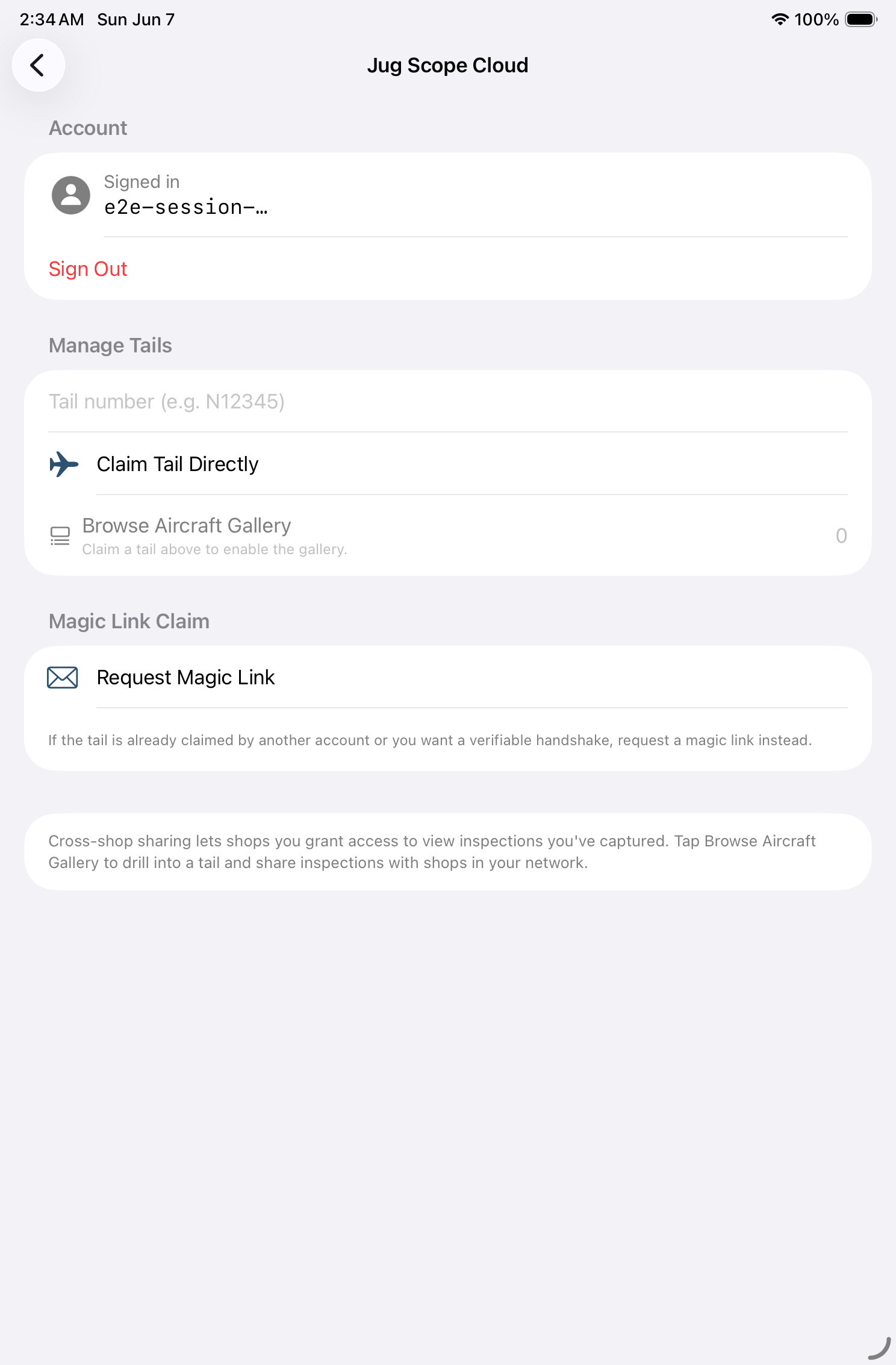
Open Settings → Jug Scope Cloud:
- Claim a tail. Under Manage Tails, enter the tail number and tap Claim Tail Directly. Once you have claimed at least one tail, Browse Aircraft Gallery opens your gallery of customer aircraft.
- Use a magic-link claim when a tail is already claimed or you want a verified handshake. Tap Request Magic Link, and Jug Scope generates a claim code the owner confirms — binding the tail to your shop with a verifiable claim rather than a direct grab.
During beta: The magic-link claim code is shown on screen for you to copy and pass along. Emailing the code directly to the aircraft's registered owner is coming in a later release.
8.3 Inspect a customer's aircraft
Inspecting a customer's airplane is the same guided eleven-view workflow your techs already know — the difference is only whose tail it is. Add the customer's aircraft (or open it from your gallery), run the inspection, and you have a complete, labeled set tied to that tail. The full capture walkthrough is §4, The Inspection Workflow.
Because every cylinder is captured the same way, the result is a uniform deliverable regardless of which tech did the work — which is exactly what lets you put your shop's name on it.
For shops — Capture the customer's reported Hobbs and Tach hours when you create the inspection. The record then speaks for itself when you hand it back, with no separate paperwork. See §4.1.
During beta: Capturing, reviewing, exporting, and sharing are all open. At launch, capturing is free and the rest requires your Shop subscription; the per-inspection unlock model also applies (see §9.4).
At launch, each inspection carries a per-inspection unlock. Unlocking an inspection is permanent and stays with that inspection — once you unlock it, it is unlocked for good, including for whoever you send it to. The full model is in §9.4.
8.4 Deliver results to the customer
Delivering is where your work becomes the customer's record. You send the finished inspection and the customer opens a clean, labeled set — exactly what you found, in the order you found it, with nothing for them to sort through.
- Send it to the customer. Deliver the inspection straight to the aircraft's owner by tail number and their email or phone.
- Send it to the customer's shop account. If the customer uses Jug Scope themselves, share it to their account so it lands alongside their own records.
During beta: Sending directly to a customer may not be available in your build yet. If you do not see a Send to Customer option, share to the customer's account or hand them an exported archive instead — see §6.1 and §10, Importing & Sample Data.
For shops — Default delivered inspections to View Only access so the customer gets a faithful record they cannot accidentally alter. Access levels are explained in §6.3. And because an unlocked inspection stays unlocked for the recipient, the customer can open what you deliver for good — no subscription of their own required (see §9.4).
8.5 Work with other shops
When a job moves between shops, the inspection moves with it — no zip files, no re-importing. Grant another shop access to an inspection you captured, and receive the ones they send you, all inside the app. The cross-shop mechanics — sharing, access levels, receiving, and revoking — are covered in §6, Sharing & Analysis.
- Send an inspection to another shop at the access level you choose — View Only to deliver a record, Full Access when they are taking the work forward (§6.3).
- Receive inspections from other shops automatically; they appear in the app with a transfer indicator and land in your records when the transfer finishes (§6.6).
- Browse everything in your gallery, where the tails you have claimed and the aircraft shared with you live together.
For shops — This is what makes a referral or a sublet job painless. The shop you hand it to opens the same complete set you captured, and you can revoke access the moment the job is done.
8.6 Volume billing
A shop's plan is built for volume, not for a single airplane. Rather than scoping a subscription to specific tails, the Shop plan covers your inspection volume across any aircraft you work on — so a busy shop is not juggling a separate plan per customer tail.
- Shop subscription — covers your inspections across any tail, billed monthly or annually through the App Store. This is the standard path for most shops.
- Card or invoice for larger purchases — for bigger shop purchases, Jug Scope offers a web billing channel where your shop can pay by credit card or invoice. This channel is for shops only; individual owners purchase through the App Store.
The full plan details, pricing, and the per-inspection unlock are in §9, Billing & Plans.
During beta: Billing is not enforced — your team has full access without a subscription. The structure above describes how it works at launch.
For shops — If you are evaluating Jug Scope for a fleet or a high-volume operation, the card/invoice channel (§9.3) is the path to talk to us about — it is built for shop-scale purchasing.
8.7 Manage tails and access at scale
As your gallery grows, the same tools that set up one tail keep dozens organized. From Settings → Jug Scope Cloud and your gallery you can claim new tails as you take on customers, see at a glance how many aircraft you are working, and manage who has access to each inspection.
Every share you grant can be pulled back: each inspection keeps a record of the shops you shared it with, and Revoke removes a shop's access at any time (§6.4). That gives you clean control over your customer records even as the volume climbs.
For shops — Revoke access when a job closes, the same way you would collect a key. The record stays yours; access is only ever as open as it needs to be.