An inspection does not have to be born on your device to live in Jug Scope. When a shop borescopes your engine, or a previous owner hands over a set of images, or you have years of old captures sitting in your Photos library, Jug Scope can pull all of it into the same organized record you would have gotten by inspecting the aircraft yourself. The payoff is a single, complete history for each airplane — no matter where the images came from.
For owners — Got an inspection from your shop or images from the last owner? Bring them in, and they sit right alongside the inspections you do yourself — one continuous record you can compare over time.
For shops — Receive an inspection from another shop, or fold in a customer's existing images, and it drops straight into your library, ready to review, compare, and build on.
10.1 Importing a Jug Scope archive
The cleanest way to move a whole inspection between devices is a .jugscope archive — a single file that carries the inspection's images and all of its details (aircraft, date, notes, every view) together. When someone exports an inspection from Jug Scope and sends you the file, opening it brings the inspection in complete, exactly as they captured it.
To import an archive:
- Open the
.jugscopefile — tap it in Mail, Messages, the Files app, or accept it over AirDrop. Jug Scope opens automatically and presents the import sheet. - Let it analyze. Jug Scope reads the archive and shows you a summary before anything is saved: the aircraft, the inspection date, the number of cylinders and images, and which device it came from.
- Review what will happen to your data. The sheet tells you plainly whether this brings in a new aircraft or adds to one you already have.
- Tap Import Inspection. Jug Scope copies everything into your library and offers to take you straight to the imported inspection.
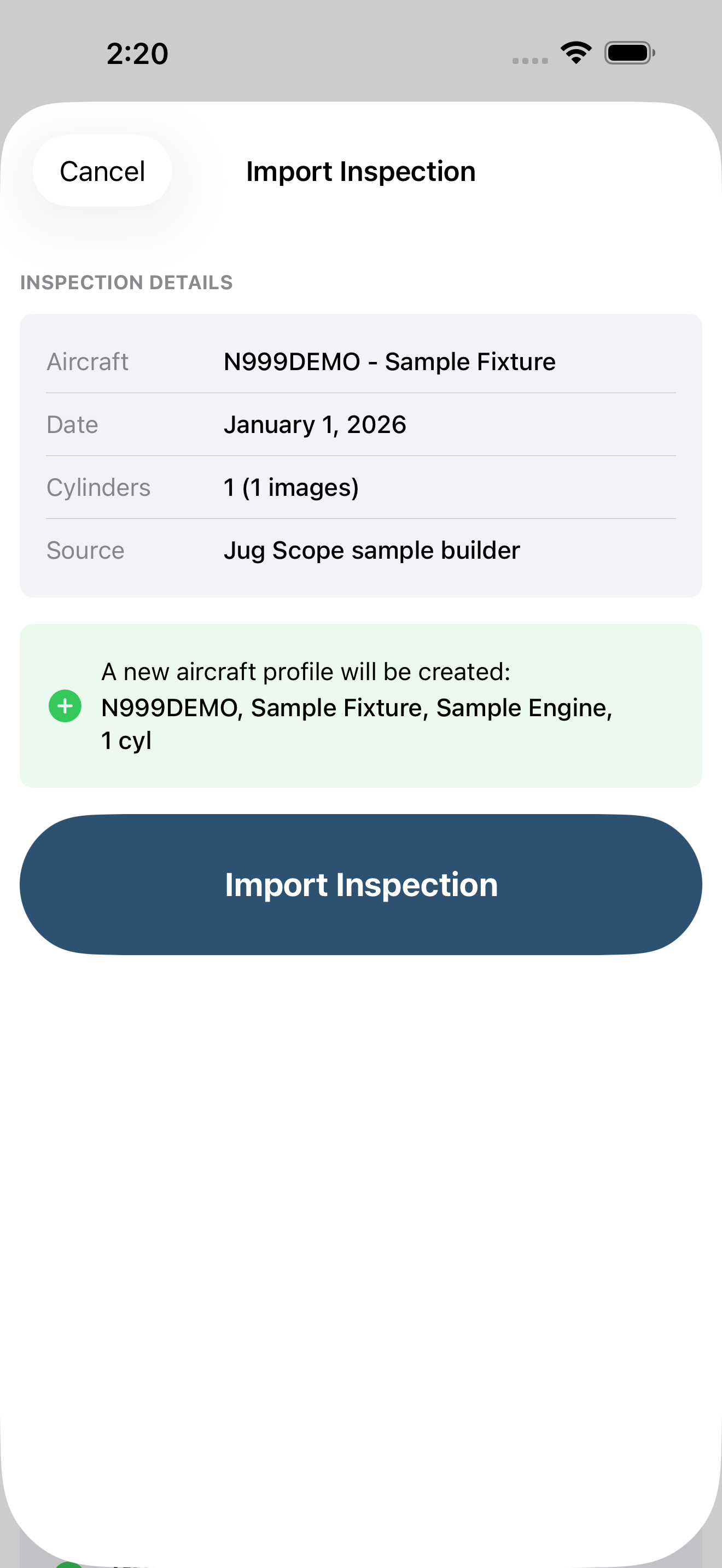
Tip — Nothing is saved until you tap Import. If the summary is not what you expected, tap Cancel and nothing changes on your device.
10.2 New aircraft, existing aircraft, and duplicates
Jug Scope handles the bookkeeping of where an imported inspection belongs, so you do not have to:
- A new aircraft. If the archive is for a tail you do not have on file, Jug Scope offers to create the aircraft profile for you — make, model, engine, and cylinder count included — so the inspection lands in a proper home.
- An existing aircraft. If you already have that tail, the inspection is simply added to its history, right next to your other inspections for the airplane.
- A duplicate inspection. If an inspection for that aircraft on that same date already exists, Jug Scope asks how you want to handle it: import it as a new (copy) inspection, or skip it and keep what you have. The app never silently overwrites.
10.3 Importing several inspections at once
Some archives carry more than one inspection — a whole history for a single tail, exported together. When you open one of these, Jug Scope shows you the full list and lets you choose exactly which inspections to bring in. Every inspection is selected by default; uncheck any you do not want. If any of them clash with an inspection you already have, you resolve each one individually — import as a copy, or skip — right in the list.
Tap Import and Jug Scope brings in everything you selected, telling you afterward how many inspections and images landed and whether any were skipped.
10.4 Importing historical or external images
Maybe your images did not come as a tidy archive — they are loose photos in your library from an older app, a different camera, or a shop that sent you a folder of pictures. Jug Scope can still organize them into a real, comparable inspection. The Import Historical Images wizard walks you through assigning loose images to the right cylinders and views.
The wizard moves through five short steps:
- Choose the aircraft the images belong to.
- Set the inspection date — the day the images were actually taken, so the inspection lands correctly in your history.
- Select the photos to import from your Photos library.
- Assign them to cylinders and views, so each image is filed where it belongs.
- Review and confirm. Jug Scope creates a complete inspection record from your selections.
For owners — Years of old borescope photos become usable the moment they are labeled. Run them through the wizard once and your comparison view can finally show you the long view of your engine.
Tip — The more accurately you assign each image to its view, the more useful the result. An image filed under the right view lines up properly when you compare inspections later; a misfiled one just adds noise.
10.5 Merging inspections
If you end up with two inspections that really belong together — for example, you captured part of an inspection, then imported the rest from another device — Jug Scope can merge them into one complete record, so a single inspection holds everything from that day.
To merge, touch and hold (or use the context menu on) an inspection row in the Home screen — available when you have two or more inspections on file. Choose Merge from the menu; a Merge Target picker appears so you can select the inspection to merge into, then confirm. The source inspection folds into the target and is removed.
Tip — Merge requires at least two inspections in your library. If you only have one, the option will not appear.
10.6 Sending an inspection out (export)
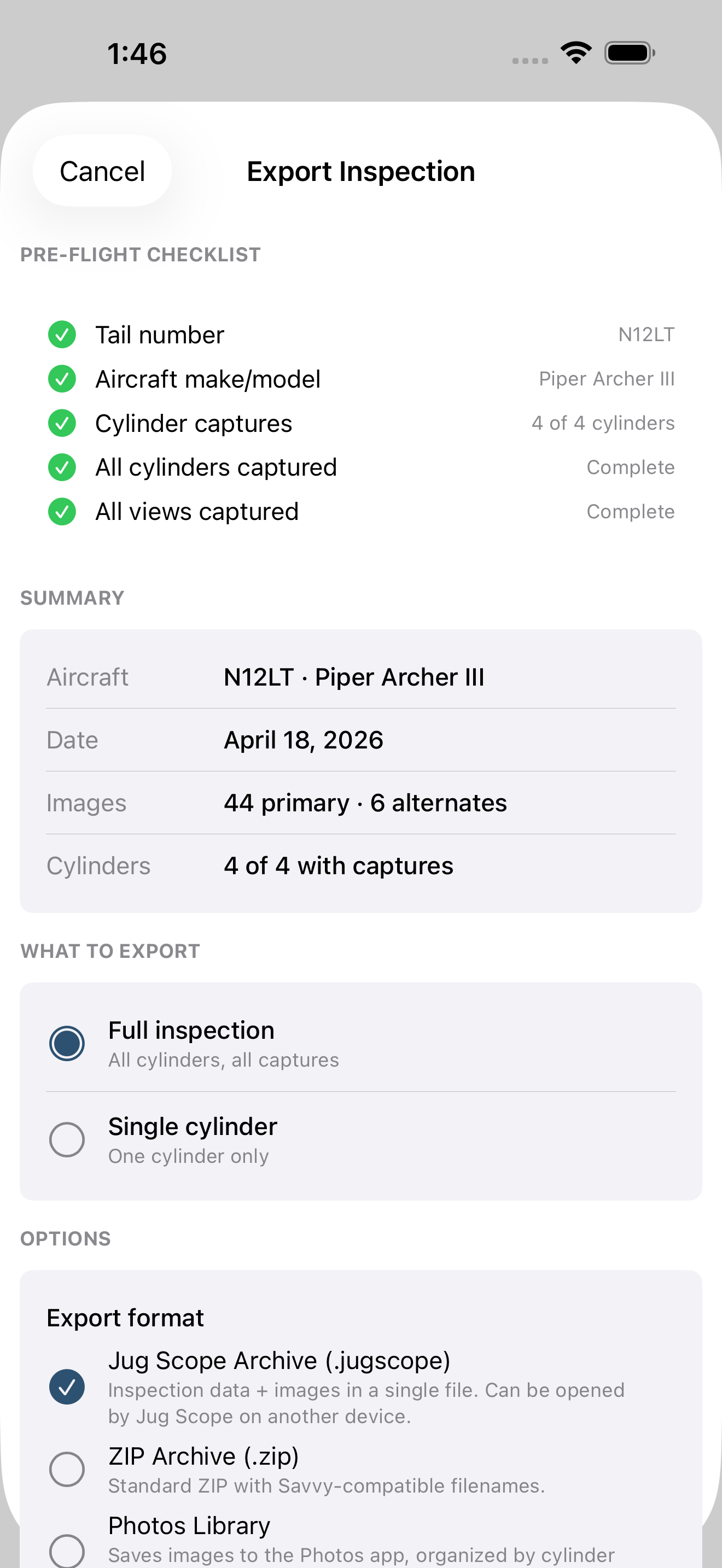
Importing has a mirror image: export packages one of your inspections into a file you can send to someone else — who can then import it on their end. You can export a Jug Scope archive (the best choice for moving a full inspection to another Jug Scope user), a ZIP of the images, or save the images straight into your Photos library. Export, sharing, and the access levels involved are covered in §6, Sharing & Analysis; the subscription that unlocks export is covered in §9, Billing & Plans.
During beta: Exporting and sharing are open to beta testers without a subscription. At launch, export requires a subscription; capturing and importing remain free. See §9.
10.7 Try a demo (coming soon)
Want to see what a finished Jug Scope inspection looks like before you borescope your own engine? A sample inspection you can load with a single tap is on the way — a complete, ready-made inspection that lets you explore reviewing, comparing, and the rest of the app with real data already in place, no hardware required.
Note — This feature is coming soon and is not yet available. Until it ships, the fastest way to see a complete inspection is to run one yourself — capture is always free (see §4, The Inspection Workflow) — or to import an archive someone shares with you.