Settings is where you tune Jug Scope to the way you work and where you go when something needs checking. Most defaults are already sensible, so you can leave Settings alone and never miss anything — but when you do want to change how captures are kept, sign in to the cloud, or send a diagnostic report, this is the map. Open it from the gear in the toolbar on the Home screen.
The sections below appear in the order you will find them in the app.
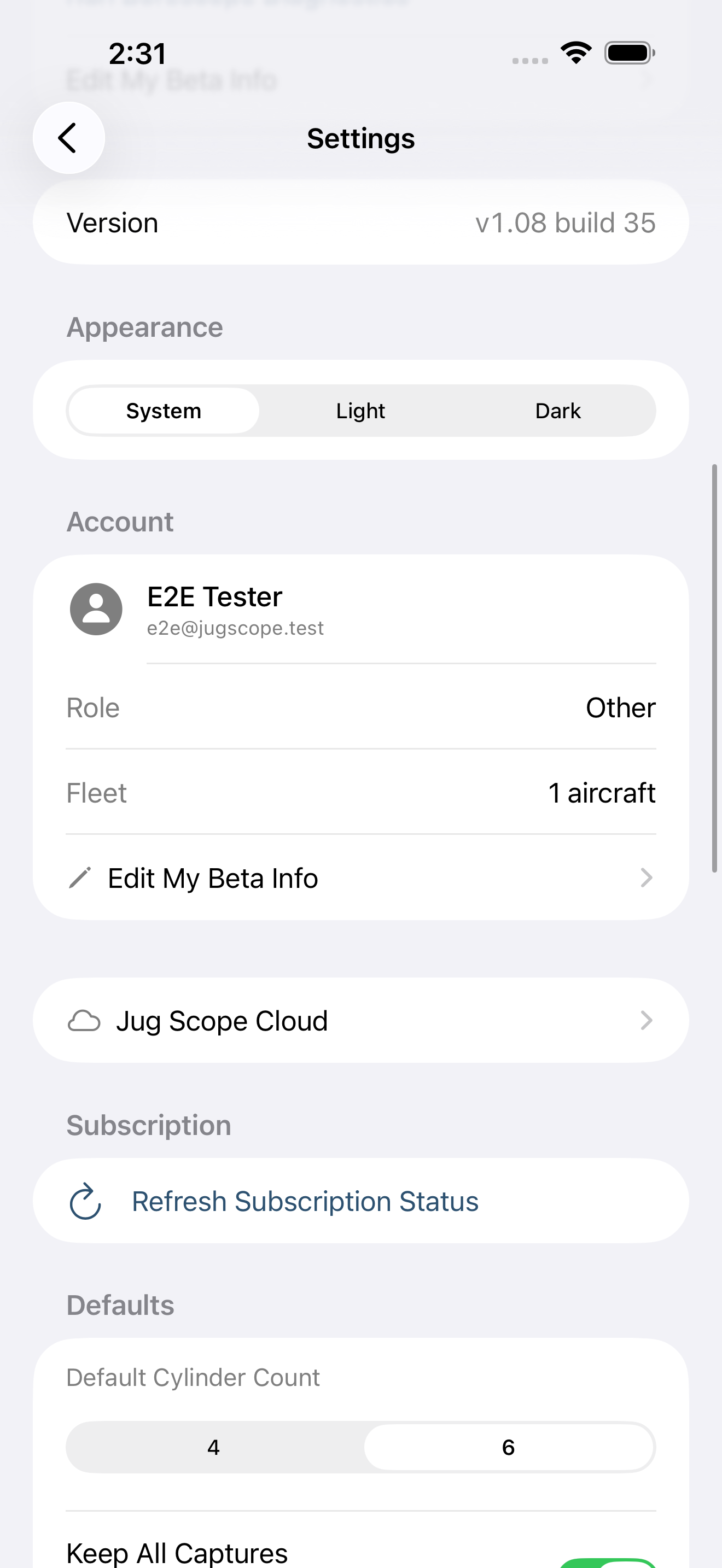
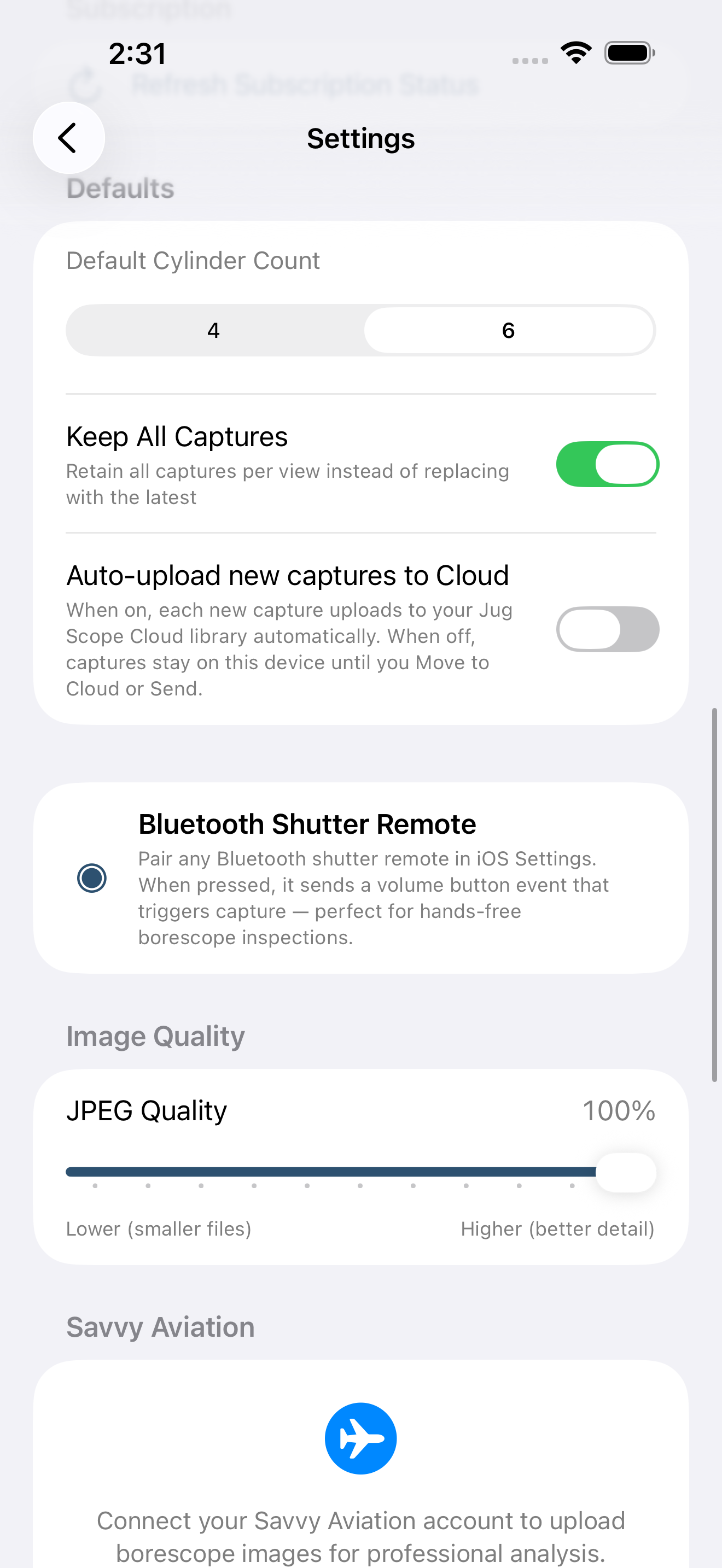
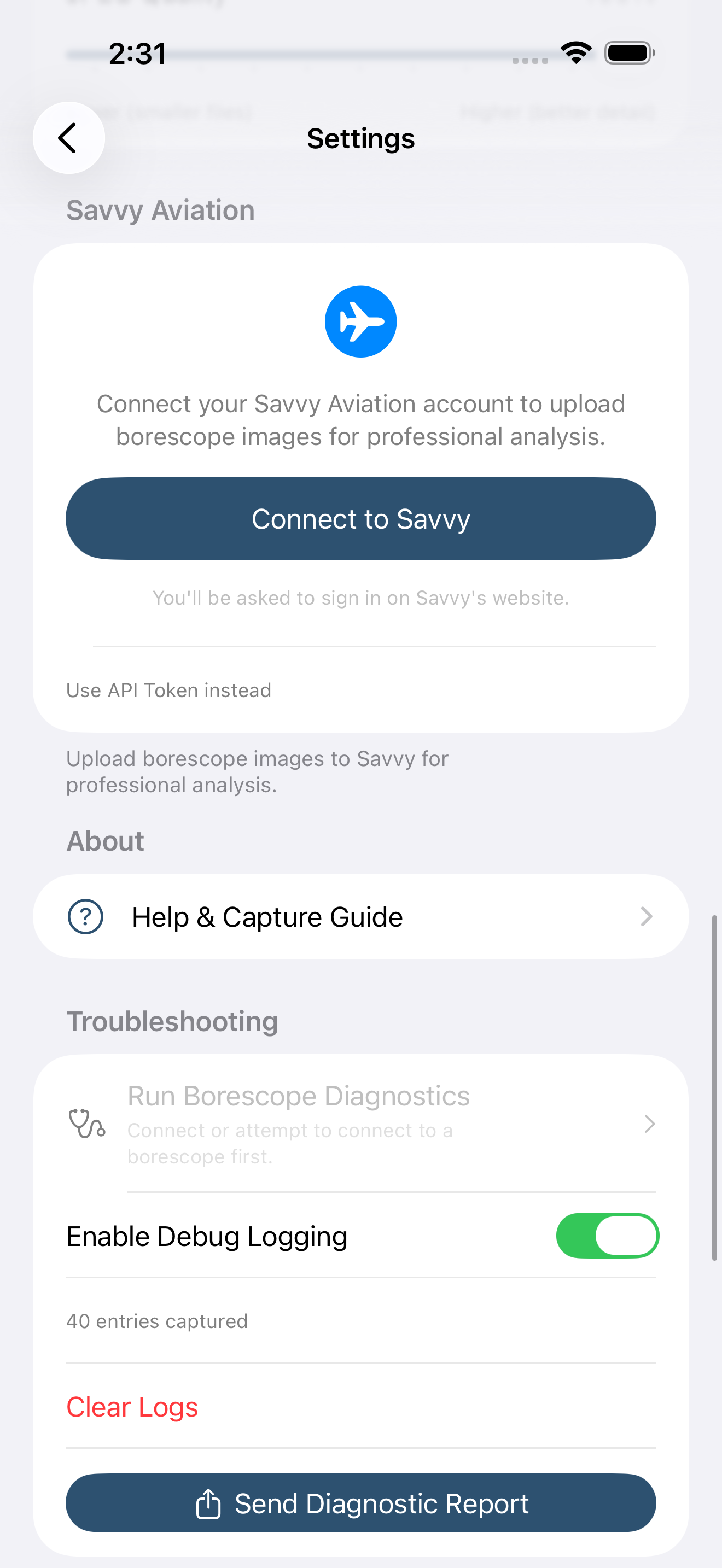
11.1 Version
A read-only line at the top showing the installed app version and build number. Handy to have on hand if you ever contact support.
11.2 Appearance
Choose how Jug Scope looks: Light, Dark, or System (follow your device's setting). The change applies immediately.
11.3 Account
Shows who you are signed in as — your name (or email), your Role, and your Fleet. This section appears once you have registered. Sign-in itself is covered in §2, Account & Sign-In.
During beta: Account details reflect your beta registration. See §2.
11.4 Jug Scope Cloud
The entry point to the cloud and cross-shop features: signing in, claiming tail numbers, browsing the aircraft gallery, and managing who can see your inspections. Tap to open the dedicated cloud settings screen. The full cloud and sharing workflow is covered in §6, Sharing & Analysis.
11.5 Subscription
Manage your plan. The Refresh Subscription Status button re-checks your subscription with the App Store and updates the app right away — useful right after you subscribe, switch devices, or change plans. Full billing details are in §9, Billing & Plans.
During beta: Subscription enforcement is off; refreshing status has no effect on access during the beta.
11.6 Defaults
How new inspections and captures behave out of the box:
- Default Cylinder Count — sets the starting cylinder count (four or six) for new aircraft. The actual count always comes from the aircraft record; this is just the sensible default offered when you add one.
- Keep All Captures — on by default. Keeps every image you accept for a view, so you can shoot several tries and pick the best later in Review. Turn it off to keep only the most recent capture per view.
- Auto-upload new captures to Cloud — off by default. When on, each new capture uploads to your Jug Scope Cloud library automatically. (Turning this on does not retroactively upload captures you already took.)
Tip — Leave Keep All Captures on. The whole point of taking two or three tries at a tricky valve view is being able to compare them and keep the sharpest — and that only works if the app is holding onto all of them.
11.7 Bluetooth Shutter Remote
Explains how to use a Bluetooth shutter remote for hands-free capture. Pair any standard Bluetooth shutter remote in your device's iOS Settings; once paired, pressing it triggers a capture in Jug Scope. There is nothing to configure here in the app — it is informational.
11.8 Image Quality
A single JPEG Quality slider controls the trade-off between file size and image detail for your captures. Higher means better detail and larger files; lower means smaller files. The default favors detail, which is what an analyst wants.
Caution — Lowering image quality to save space can cost you the fine detail an analyst needs to read a valve or barrel wall. Unless storage is genuinely tight, leave it high.
11.9 Analysis account
Sign in to your engine-analysis account to upload inspections directly for expert review. This is optional — you can export and share inspections without it. The upload workflow is covered in §6, Sharing & Analysis.
11.10 About
A link to the in-app Help & Capture Guide, which walks through the eleven-view protocol and capture tips on the device.
11.11 Troubleshooting
Tools for when something is not working right:
- Run Borescope Diagnostics — runs a bounded probe of your borescope and local network to help pin down a connection problem. It previews exactly what it will contact before it runs.
- Enable Debug Logging — captures app activity in memory for troubleshooting. Off unless you turn it on.
- Send Diagnostic Report — packages connection info, settings, and device details into a report and sends it to support. No images are included. See §12, Troubleshooting & FAQ.
11.12 Advanced
Less-used controls:
- Migrate Images to Photo Library — a tool to move inspection images from app storage into your Photos library.
- Always Use Built-in Camera — when on, the device's built-in camera activates automatically when no borescope is connected.
- Show Onboarding Again — replays the first-run onboarding screens on the next launch.
- Share capture data for quality improvement — on by default (opt-out). When enabled, copies of uploaded images are sent to our diagnostic server to help improve image quality analysis. No personal information beyond your email is included. You can turn it off anytime.